> ## Documentation Index
> Fetch the complete documentation index at: https://docs.spotflow.one/llms.txt
> Use this file to discover all available pages before exploring further.
# Integrate Spotflow Initialize/Redirect API Into Your Application
> This tutorial will help you integrate the Spotflow API into your application.
**Watch the full demo:**
Integrating a payment gateway into your application goes beyond processing payments.
You need to ensure customers can make payments easily, without delays or frustrating declined error messages that make them hiss. At the same time, you want to ensure transactions are adequately secure to protect customer-sensitive data and prevent malicious actors from manipulating transaction status.
This is where the [Spotflow Initialize Payment API](/api-reference/payments/initialize-collection) shines. It allows you to seamlessly initialize a payment, complete the checkout process, and securely verify the transaction to ensure only valid transactions are approved.
This tutorial provides a practical step-by-step process for integrating the Initialize Payment API in your application. It explains how to:
* Initialize a payment.
* Redirect to the checkout URL to complete the payment.
* Securely verify the transaction.
## Prerequisites
To integrate the Spotflow Initialize Payment API endpoint, you must have the following:
1. A Spotflow merchant account that is KYB Verified and Configured. You can sign up for an account [here](https://app.spotflow.co).
2. Get your API Credentials(API Keys) i.e your test secret key or live secret key from your Spotflow dashboard. This will be used to authenticate your request.
## Step-by-step Process on How to Integrate Spotflow Initialize Payment API
To make this tutorial practical, we will build a simple event ticket app. Although this may differ from the app you want to build, the process is usually the same.
This way, you can understand how the integration works and easily add the API to your application.
Before we start, make sure you have:
* A Spotflow merchant account
* Basic familiarity with Python/Django
## Step 1: Retrieve your customers basic information
Retrieve the basic customer information you need to process their transactions. E.g., name, email address, amount, etc.
You can retrieve customer information from your database or from an HTML form, just like the one in the example below.
```yaml theme={null}
```
```yaml theme={null}
def ticket(request):
if request.method == "POST":
username = request.POST.get("username")
email = request.POST.get("email")
ticket = request.POST.get("ticket")
return render(request, "ticket.html",)
```
## Step 2: Temporarily store the retrieved data if you are using the HTML form method
```yaml theme={null}
def ticket(request):
if request.method == "POST":
username = request.POST.get("username")
email = request.POST.get("email")
ticket = request.POST.get("ticket")
try:
ticket = int(ticket) #converts the ticket input to integer
request.session["ticket"] = ticket # temporarily store the ticket input
request.session["username"] = username # temporarily store the username
request.session["email"] = email # temporarily store the email
return redirect("checkout")
except ValueError:
messages.info(request, "Invalid input") # throws an error if the input is not an integer
return redirect("ticket")
return render(request, "ticket.html",)
```
## Step 3: Get your test secret key or Live secret key.
You can use the test secret key when testing the API, and the live key when you are ready to go live.
```yaml theme={null}
API_KEY = "YOUR_SECRET_KEY"
```
## Step 4: Set the authorization header.
```yaml theme={null}
headers = {
"Authorization": f"Bearer {API_KEY}",
"Content-Type": "application/json"
}
```
## Step 5: Get your `callBackUrl`.
This represents the specific URL you want to redirect customers to immediately after the checkout process.
You can set this on your Spotflow dashboard in **Settings --> Payments --> API Keys --> Webhooks & CallBack --> CallBack URL**.
```yaml theme={null}
callBackUrl = "https://spotflow-demo.onrender.com/verify/"
```
You can skip this for now and add it later once you set up the verification page on your site.
## Step 6: Retrieve all the information you need to send a request to the `initalize` API in your checkout function.
Information like username, amount, and email is compulsory.
```yaml theme={null}
def checkout(request):
ticket = request.session.get("ticket") # retrieves the number of tickets
username = request.session.get("username") # retrieves the username
email = request.session.get("email") # retrieves the email
price = 1000 # represents the ticket price
amount = price * ticket # calculates the ticket amount
reference = f"ref-{uuid.uuid4()}" # this represents the unique ID, but should be replaced by a unique ID generated by your company
currency = "NGN"
API_KEY = "YOUR_SECRET_KEY"
headers = {
"Authorization": f"Bearer {API_KEY}",
"Content-Type": "application/json"
}
```
The `reference` in the example above generates a universally unique identifier, but must be replaced by a unique ID from your system to make payments easy to track.
## Step 7: Pass in the retrieved details as body parameters.
```yaml theme={null}
ticket = request.session.get("ticket")
username = request.session.get("username")
email = request.session.get("email")
price = 1000
amount = price * ticket
reference = f"ref-{uuid.uuid4()}"
currency = "NGN"
payload = {
"reference": reference,
"amount": amount,
"currency": "NGN",
"localCurrency": currency,
"metadata": {
"productName": "Tech Workshop 2025",
"title": "dTechreative Ticket",
},
"callBackUrl": "https://spotflow-demo.onrender.com/verify/",
"customer":{
"email": email,
"name": username,
}
}
API_KEY = "YOUR_SECRET_KEY"
headers = {
"Authorization": f"Bearer {API_KEY}",
"Content-Type": "application/json"
}
```
## Step 8: Set the `initialize payment` endpoint and pass in the body parameters.
```yaml theme={null}
response = requests.post("https://api.spotflow.co/api/v1/payments/initialize", json=payload, headers=headers)
```
## Step 9: Retrieve the API response.
If it is successful, convert it to JSON; else, display an error message if the request failed.
```yaml theme={null}
if response.status_code == 200:
converter = response.json()
else:
messages.info(request, "An error occurred.")
return redirect("ticket")
```
You should have a typical API response like this:
```yaml theme={null}
{
"reference": "ref-f537b2f7-c149-40ea-bdd0-5d15ea9c84d9",
"checkoutUrl": "https://checkout.spotflow.co/JVLGMqU9CgkGCrp",
"paymentCode": "JVLGMqU9CgkGCrp",
"status": "pending",
"callBackUrl": "https://spotflow-demo.onrender.com/verify/",
"metadata": {
"title": "dTechreative Ticket",
"productName": "Tech Workshop 2025"
}
}
```
**In the API response,**
* `reference`: represents the unique reference ID.
* `checkoutUrl`: represents the checkout URL you will redirect the user to complete their payment.
* `status`: represents the transaction status.
* `callBackUrl`: represents your callback URL.
* `metadata`: represents your product metadata.
* `title`: represents your product title.
* `productName`: represents your product name.
## Step 10: Retrieve `reference` and `checkoutUrl` from the response.
These are the two important keys you need.
```yaml theme={null}
if response.status_code == 200:
converter = response.json()
extractData = {
"reference": converter.get("reference"), # this retrieves the reference from the response stored in the `converter` variable
"checkoutURL": converter.get("checkoutUrl"), # this retrieves checkoutUrl from the response stored in the `converter` variable
}
```
## Step 11: Redirect the user to the `checkoutUrl` to complete the checkout process.
This is where users will securely make payments using the Spotflow secure payment gateway.
```yaml theme={null}
if response.status_code == 200:
converter = response.json()
extractData = {
"reference": converter.get("reference"),
"checkoutURL": converter.get("checkoutUrl"),
}
return redirect(extractData["checkoutURL"]) # redirects user to the checkout page
else:
messages.info(request, "An error occurred.")
return redirect("ticket")
```
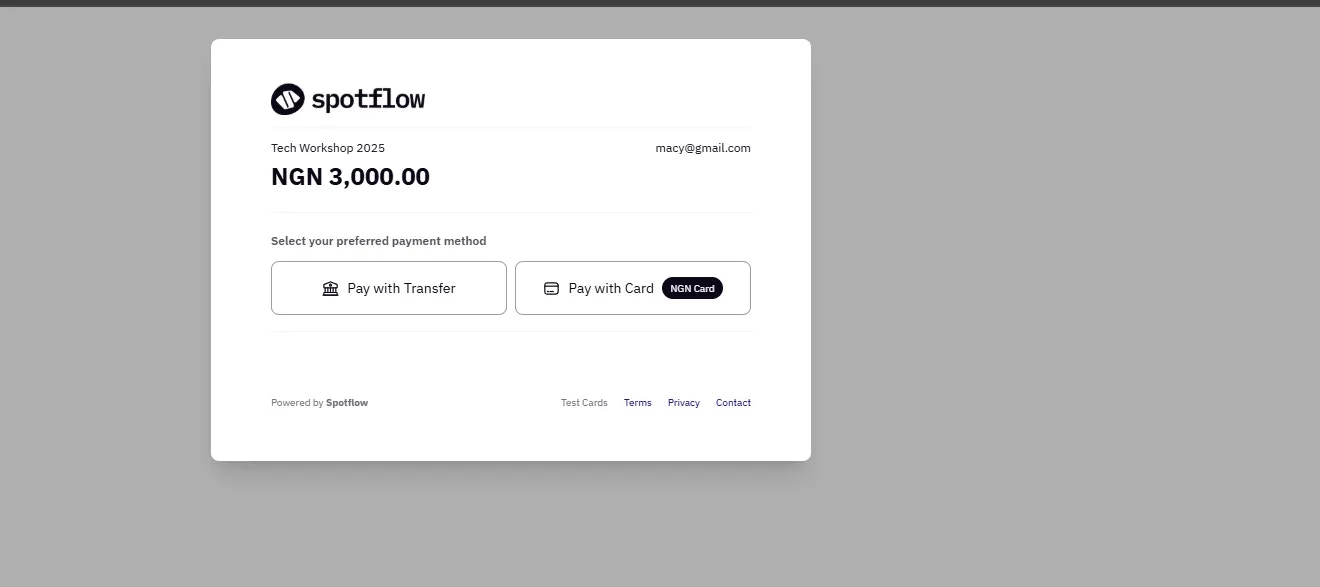
Once a user clicks the “Pay” button in the frontend, it initializes a transaction by making a POST request to the `Initialize` API and then redirects to the `checkoutUrl` to make payments.
You should have something like this:
The user can then complete their payment via bank transfer or card. This is one of the most important aspects of using the Spotflow API.
It enables you to securely process transactions faster without revealing sensitive customer financial details.
To pay with a card, you can use Spotflow’s [test cards](/expert-desk/testing-payments) in test mode and then a real card in live mode.
## Step 12: Once the payment is complete, it will automatically redirect them to the `callBackUrl` you specified earlier.
Important Notes:
1. You, as the merchant that owns the application and the user who made the payment, will receive the payment receipt in your email once the payment is successful.
2. If you don’t specify the `callbackUrl`, the user will not be redirected to your site after payments.
Now, the next step is to verify their transaction.
## How to Securely Verify a Transaction Status
Once the user completes payment, you need to verify the transaction status to prevent fraud.
There are two ways to verify a transaction status. You can either use the [`verify payment` API](/api-reference/payments/verify-collection) or the webhooks.
However, the webhook method is often preferred because it provides real-time updates and is more efficient than calling the `verify payment` API repeatedly to check transaction status.
### How to Verify Transaction Status Using Webhooks
Webhooks are event-triggered messages that automatically update you whenever a payment status changes.
For instance, when a customer makes a payment and the transaction is successful/failed, that is an event. Spotflow instantly sends a POST request to the webhook URL you set.
This request provides information about the event, such as the reference, amount, etc. Then you can retrieve the data and determine how you want to update your user on the status of their transaction or the next steps.
There are two main steps involved when using the webhook methods.
#### Step 1: Create a webhook URL
You can instantly create a webhook URL on sites like [`webhook.site`](https://webhook.site/) when testing and then create a new URL (specific endpoint) in your backend when you want to go live.
1. Set up the webhook URL path in the `urls.py` if you are using Django.
```yaml theme={null}
urlpatterns = [
path('webhook/', views.webhook, name="webhook"),
]
```
2. In your views function, set up a simple POST request that Spotflow can send updates to.
```yaml theme={null}
import json
from django.http import JsonResponse, HttpResponseBadRequest
from django.views.decorators.csrf import csrf_exempt
@csrf_exempt # This exempts the view function from CSRF protection
def webhook (request):
if request.method == "POST":
try:
payload = json.loads(request.body) # retrieves the request body
eventType = payload.get("event") # retrieves the event type
data = payload.get("data", {}) # retrieves the data
if eventType == "payment_successful": # checks if payment is successful
reference = data.get("reference") # retrieves the payment reference from the data
amount = data.get("amount") # retrieves the amount from the data
print("Payment successful with ID", reference, "Amount", amount) # displays success message or provide a logic to update the database
elif eventType == "payment_failed": # checks if payment failed
reference = data.get("reference") # retrieves the payment reference from the data
print("Payment failed with ID", reference) # failure message or provide a logic to update the database
return JsonResponse({"status": "success"}, status=200) # must always return a 200 status code to acknowledge an event occurred and to prevent triggering the webhook multiple times
except Exception as e:
print("Error processing webhook", e) # displays an error message
return JsonResponse({"status": "error"}, status=400)
return JsonResponse({"status": "Method not allowed"}, status=405)
```
3. Test and deploy your new webhook URL.
#### Step 2: Register your webhook URL in the Spotflow dashboard.
1. Log in to your [Spotflow Dashboard](https://app.spotflow.co/).
2. Navigate to the “Settings” section and click the “Payments” tab.
3. Click the “API Keys” option and scroll down to the “Webhook” section.
4. Enter your webhook URL in the box and click the save/update button.
If you are using a unique webhook URL from webhook testing tools like webhook.site, paste it here directly.
If you configured it in your backend, paste the deployed URL here.
5. Enter the OTP from your authenticator app to complete the process.
After setting this up, your webhook URL will be triggered whenever an event occurs. Then you can use the event information to verify transaction status.
You will receive something like this in your server logs whenever an event is triggered. E.g., when a payment is successful.
```yaml theme={null}
Payload: {
"event":"payment_successful"
"data":{
"id":"9f005772-ab63-4f19-8f6d-fa8022943512","reference":"ref-4a1ca154-a988-4d60-8ad6-14f6a477c415",
"spotflowReference":"SPF-SPA-9559706d9944422db02b9f0d9b96bbaa",
"amount":1000.00,
"currency":"NGN",
"channel":"bank_transfer",
"status":"successful",
"customer":{
"id":"0e9f774b-3436-4385-9d92-aa2db375b790",
"name":"gloriaSilver",
"email":"silver@gmail.com"
},
"providerMessage":"Payment completed successfully.",
"rate":1499.85,
"region":"Nigeria",
"bankDetails":{
"accountName":"SPOTFLOW LTD",
"accountNumber":"3370386001",
"bankName":"Jollof Bank"
},
"createdAt":"2025-11-06T08:04:29Z",
"Metadata":{
"title":"dTechreative Ticket",
"productName":"Tech Workshop 2025"
},
"totalTaxAmount":0.0000,
"totalLocalAmount":1000.0000
}
}
```
### How to Verify Transaction Status Using the Verify Payment API
The Spotflow [`Verify Payment` API](/api-reference/payments/verify-collection) allows you to verify transaction status using your set unique reference ID at payment creation.
Here is how the verification process typically works.
#### Step 1: Retrieve the unique `reference` ID in the `initialize payment` API response.
```yaml theme={null}
reference = request.GET.get("reference")
```
#### Step 2: Get your API keys and set your headers.
#### Step 3: Pass the `reference` ID as a path parameter to the `verify payment` endpoint.
```yaml theme={null}
response = requests.get(f" https://api.spotflow.co/api/v1/payments/verify?reference={reference}", headers=headers)
```
#### Step 4: Send your API request.
```yaml theme={null}
{
"id": "e0fd7f62-8431-4fd2-9177-4e362a5e85d9",
"reference": "ref-3b7c063a-b0a2-4d0c-a637-2bdfc7353ba2",
"spotflowReference": "SPF-SPA-cc75701e381c4b63bd005750572c8e6d",
"amount": 3000.00,
"currency": "NGN",
"channel": "bank_transfer",
"status": "successful",
"customer": {
"id": "05562200-1ef2-49f0-b92d-c824eb3905b9",
"name": "gloriaSilver",
"email": "glow@gmail.com"
},
"providerMessage": "Payment completed successfully.",
"rate": 1530.46,
"region": "Nigeria",
"bankDetails": {
"accountName": "SPOTFLOW LTD",
"accountNumber": "8419470846",
"bankName": "Jollof Bank"
},
"createdAt": "2025-10-22T12:14:01Z",
"metadata": {
"title": "dTechreative Ticket",
"productName": "Tech Workshop 2025"
},
"totalTaxAmount": 0.0000,
"totalLocalAmount": 3000.0000
}
```
#### Step 5: Retrieve the specific data you need in the API response.
```yaml theme={null}
if response.status_code == 200:
convertJson = response.json()
extractResponse = {
"id": convertJson.get("id",),
"reference": convertJson.get("reference"),
"status": convertJson.get("status"),
"name": convertJson.get("customer", {}).get("name"),
"email": convertJson.get("customer", {}).get("email"),
"amount": convertJson.get("amount"),
}
else:
messages.info(request, "An error occurred during verification.")
```
#### Step 6: Display the necessary details you want users to see in the verification page.
Something like this:
Now, you have securely verified the transaction status using the Spotflow verify payment endpoint.
You can watch the demo video above to see the complete payment workflow, or check the [live demo](https://spotflow-demo.onrender.com/).
## Troubleshooting
Common issues and their solutions:
**Possible causes:**
* Invalid/missing fields.
* Region and Service providers not configured.
* Network connectivity issues.
**Solutions:**
1. Verify that you added all the necessary/required fields.
2. Verify from our support team that you've been region and service provider configured as a merchant. By default, this is not set.
3. Test API connectivity with a simple GET request
The Spotflow Initialize/Redirect API not only allows you to process and verify payments securely but also makes integration in your application easy.
## Congratulations! You've Implemented the Initialize/Redirect API
You've successfully integrated the Redirect checkout with Spotflow! Here's what you accomplished:
Your application can now accept payments securely through Spotflow
You can create payment sessions and generate unique checkout URLs for your customers
Your users are automatically redirected to Spotflow's secure checkout page to complete payments
You've implemented either webhook or API-based verification to confirm payment status & prevent fraud with a complete end-to-end payment workflow from initialization to verification
This example demonstrates only a minimal implementation of the Initialize/Redirect API. For production use, you should add robust error handling, authentication, data validation, security measures, and adapt the logic to fit your application's requirements.
## What's Next?
Now that you have the basics working, you can:
* **Go Live**: Switch from test mode to live mode using your live secret key and start accepting real payments.
* **Customize Metadata**: Add more product information and custom fields to track your business-specific data
* **Monitor Transactions**: Use your Spotflow dashboard to track payments collections and manage your business
* **Explore More Features**: Check out our other APIs for [subscriptions](/api-reference/subscription-plans/create-single-plan), [disbursements](/api-reference/transfer-api/create-single-transfer), and more
Need help or have questions? Reach out to our [support team](mailto:support@spotflow.one) or check our [FAQ section](/expert-desk/faq).
Contributed [by](https://github.com/gloriadasilva) [Gloria Tejuosho](https://medium.com/@gloriadasilva_28376/how-to-integrate-spotflows-initialize-redirect-api-in-your-application-18c002b16ec0) during Hacktoberfest '25 with Spotflow
 **Watch the full demo:**
Integrating a payment gateway into your application goes beyond processing payments.
You need to ensure customers can make payments easily, without delays or frustrating declined error messages that make them hiss. At the same time, you want to ensure transactions are adequately secure to protect customer-sensitive data and prevent malicious actors from manipulating transaction status.
This is where the [Spotflow Initialize Payment API](/api-reference/payments/initialize-collection) shines. It allows you to seamlessly initialize a payment, complete the checkout process, and securely verify the transaction to ensure only valid transactions are approved.
This tutorial provides a practical step-by-step process for integrating the Initialize Payment API in your application. It explains how to:
* Initialize a payment.
* Redirect to the checkout URL to complete the payment.
* Securely verify the transaction.
## Prerequisites
To integrate the Spotflow Initialize Payment API endpoint, you must have the following:
1. A Spotflow merchant account that is KYB Verified and Configured. You can sign up for an account [here](https://app.spotflow.co).
2. Get your API Credentials(API Keys) i.e your test secret key or live secret key from your Spotflow dashboard. This will be used to authenticate your request.
## Step-by-step Process on How to Integrate Spotflow Initialize Payment API
To make this tutorial practical, we will build a simple event ticket app. Although this may differ from the app you want to build, the process is usually the same.
This way, you can understand how the integration works and easily add the API to your application.
**Watch the full demo:**
Integrating a payment gateway into your application goes beyond processing payments.
You need to ensure customers can make payments easily, without delays or frustrating declined error messages that make them hiss. At the same time, you want to ensure transactions are adequately secure to protect customer-sensitive data and prevent malicious actors from manipulating transaction status.
This is where the [Spotflow Initialize Payment API](/api-reference/payments/initialize-collection) shines. It allows you to seamlessly initialize a payment, complete the checkout process, and securely verify the transaction to ensure only valid transactions are approved.
This tutorial provides a practical step-by-step process for integrating the Initialize Payment API in your application. It explains how to:
* Initialize a payment.
* Redirect to the checkout URL to complete the payment.
* Securely verify the transaction.
## Prerequisites
To integrate the Spotflow Initialize Payment API endpoint, you must have the following:
1. A Spotflow merchant account that is KYB Verified and Configured. You can sign up for an account [here](https://app.spotflow.co).
2. Get your API Credentials(API Keys) i.e your test secret key or live secret key from your Spotflow dashboard. This will be used to authenticate your request.
## Step-by-step Process on How to Integrate Spotflow Initialize Payment API
To make this tutorial practical, we will build a simple event ticket app. Although this may differ from the app you want to build, the process is usually the same.
This way, you can understand how the integration works and easily add the API to your application.
 The user can then complete their payment via bank transfer or card. This is one of the most important aspects of using the Spotflow API.
It enables you to securely process transactions faster without revealing sensitive customer financial details.
The user can then complete their payment via bank transfer or card. This is one of the most important aspects of using the Spotflow API.
It enables you to securely process transactions faster without revealing sensitive customer financial details.
 Now, you have securely verified the transaction status using the Spotflow verify payment endpoint.
You can watch the demo video above to see the complete payment workflow, or check the [live demo](https://spotflow-demo.onrender.com/).
## Troubleshooting
Common issues and their solutions:
Now, you have securely verified the transaction status using the Spotflow verify payment endpoint.
You can watch the demo video above to see the complete payment workflow, or check the [live demo](https://spotflow-demo.onrender.com/).
## Troubleshooting
Common issues and their solutions: